
Is Alibaba.com Safe for US Buyers? How to Avoid Scams, Hidden Costs & Shipping Delays in 2026
Buying products online can be straightforward, but sourcing from a wholesale marketplace introduces a few extra questions. Is…

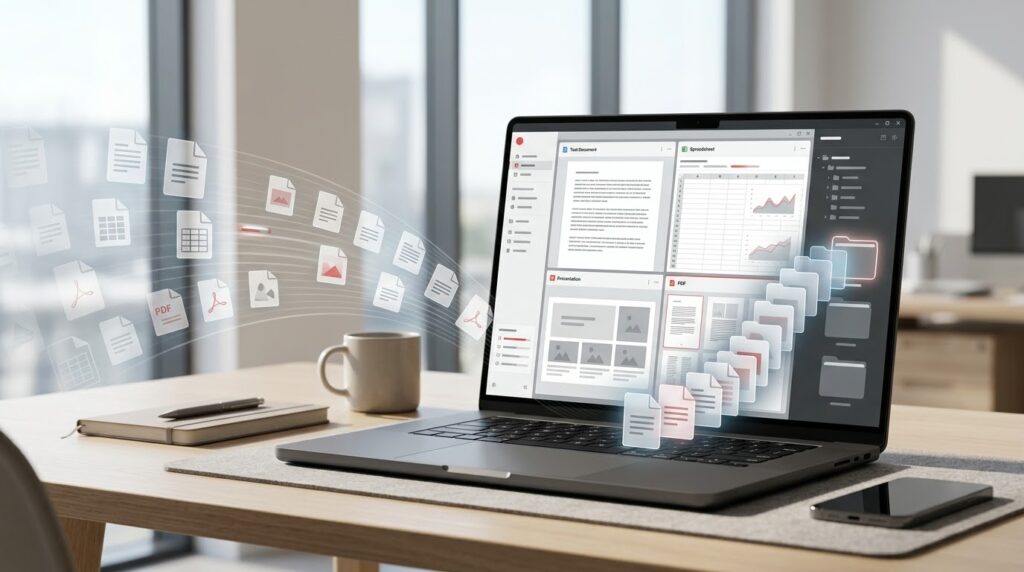
Have you ever finished a document only to discover that you still need to create a spreadsheet, prepare slides, and send everything as a PDF?
For students, freelancers, and small businesses, these tasks can be part of a single project. Moving between applications and formats may add unnecessary steps, especially when deadlines are approaching.
A practical solution is to establish a simple document workflow and choose software that supports the tasks you perform regularly.
WPS Office combines Writer, Spreadsheet, Presentation, and PDF tools in one suite. These tools cover many common office tasks, from preparing a report to working with spreadsheets and managing PDF files.
This guide explains how to plan an efficient office workflow and where WPS Office may fit into it.
Why Document Management Matters
Productivity is not simply about typing faster. It also involves organizing files, reducing repeated work, and making sure that the final document is ready to share.
A poorly organized project might contain multiple versions of the same report, spreadsheets with unclear names, and presentations that have not been converted to the required format.
A better workflow starts with a clear folder structure, consistent filenames, and an understanding of which application is appropriate for each task.
For example, a freelance project folder could contain:
01_Project_Brief
02_Working_Documents
03_Spreadsheets
04_Presentations
05_Final_PDFs
This basic structure makes it easier to find files and distinguish working copies from final deliverables.
Step 1: Write and Edit Your Documents
The first stage of many projects involves creating a document.
Students might prepare essays or research summaries. Freelancers may need proposals, project plans, or reports. Businesses may create letters, price lists, and internal documentation.
WPS Writer provides a workspace for creating and editing text documents.
To establish a reliable document workflow:
Start with a clear structure. Use headings to separate major sections and make longer documents easier to scan.
Format consistently. Choose a readable font, maintain consistent spacing, and check page breaks.
Save working versions sensibly. Use filenames that identify the project and revision, rather than creating several files called final-final-new.
Review before sharing. Check names, dates, tables, spelling, and formatting.
These simple habits can improve document quality regardless of which word processor you use.
Step 2: Use Spreadsheets to Organize Information
Spreadsheets are useful when a project requires structured numbers or records.
A freelancer might track payments, deadlines, and expenses. A student might organize experiment results. A small business might maintain a basic inventory list.
WPS Spreadsheet supports common spreadsheet tasks, including tables, calculations, and charts.
Consider a simple monthly budget. You could create columns for the expense category, expected cost, actual cost, and difference. A formula can then calculate the difference between the expected and actual amounts.
For spreadsheets that support important business decisions, check formulas, number formats, and totals carefully. Do not assume that a figure is correct merely because it appears automatically.
If a workbook uses macros, complex models, or specialized Excel functionality, test it in the software your collaborators will use.
Step 3: Turn Your Information Into a Presentation
A good presentation makes information easier to understand.
After preparing a project report or analyzing a spreadsheet, you might need to share the main findings with classmates, colleagues, or clients.
WPS Presentation helps users create slide decks containing text, images, charts, and other visual elements.
For a more effective presentation, begin with the audience and the main message. A five-minute overview usually requires less detail than a formal research defense or an internal training session.
Use concise headings, avoid overcrowding slides, and make charts large enough to read. When using numbers from a spreadsheet, confirm that the presentation reflects the latest version of the data.
Before presenting, review the file on the device or software you plan to use.
Step 4: Work With PDF Documents
PDFs help preserve the layout of documents when they are shared or viewed on different devices.
They are commonly used for forms, reports, invoices, manuals, and final versions of project documents.
WPS Office includes PDF tools for supported PDF workflows. Depending on your version and plan, these may cover tasks such as reading, annotating, converting, merging, signing, or editing documents.
Here are a few practical examples:
Sharing a final report: Export your finished document to PDF when the recipient needs a stable layout.
Reviewing a document: Use available annotation tools to mark sections that require attention.
Preparing several files: If your version supports combining PDFs, check that the page order and formatting remain correct.
Converting a document: Review the output after conversion, especially if the file contains tables, unusual fonts, or complicated layouts.
Not every PDF feature is necessarily included in the free tier. Check the current product details before paying for a tool you only need occasionally.
Step 5: Check Compatibility Before Sending Files
A file that opens on your computer may look different in another application.
Formatting, special fonts, charts, embedded objects, and macros can behave differently between office suites.
If your colleague uses Microsoft Office, for example, do not assume that a complex presentation or workbook will transfer perfectly simply because its file type is supported.
For important files:
Save a working copy before converting or editing.
Open the exported file and inspect it.
Check page breaks, fonts, charts, equations, and tables.
Confirm that the recipient can access the file.
Keep the final version clearly labeled.
This step is especially important for client proposals, financial spreadsheets, and academic submissions.
How WPS Office Fits Into One Productivity Workflow
A typical project might follow this sequence:
Plan → Write → Calculate → Present → Export → Share
You could draft a proposal in Writer, organize its budget in Spreadsheet, prepare supporting slides in Presentation, and export the final documents as PDFs when appropriate.
Because the four tools are part of the same suite, you can access these types of office functionality without installing an entirely separate application for every routine task.
WPS Office also offers supported desktop and mobile applications. However, capabilities can differ by platform, version, and account, so check your specific workflow before relying on cross-device features.
Who Can Benefit From This Approach?
Students: Prepare assignments, organize information, and create presentation slides.
Freelancers: Manage proposals, budgets, client reports, and final deliverables.
Small businesses: Organize routine documents, calculations, and presentations.
Remote workers: Establish a consistent file structure and share documents in appropriate formats.
A single suite may be convenient, but the best setup depends on your particular needs. Teams with specialized enterprise requirements or complex spreadsheets should assess those requirements before making a change.
Frequently Asked Questions
Can WPS Office edit PDFs?
WPS Office includes PDF capabilities, but the exact editing functions depend on the version and plan. Check the current feature list for the operation you need.
Can I create spreadsheets and presentations in WPS Office?
Yes. Spreadsheet and Presentation are included in the suite alongside Writer and PDF tools.
Is WPS Office suitable for business documents?
It may be suitable for many routine business tasks, such as reports, budgets, and presentations. Test files that use advanced formatting or specialized features before using them for critical projects.
How can I avoid formatting problems?
Review the file in the destination application, pay attention to complex elements, and inspect exported PDFs before sending them.
Build a Better Document Workflow
An organized workflow can help you spend less time searching for files and more time completing the work itself.
Start with clear folders, consistent filenames, appropriate applications, and a final review before sharing. Then choose productivity software that supports your common tasks.
If you want to explore a suite with document, spreadsheet, presentation, and PDF tools together, take a look at WPS Office.
Explore WPS Office: [INSERT YOUR WPS AFFILIATE LINK]
Compare the available features and plans to decide whether it is right for your workflow.
Affiliate disclosure: The publisher may earn a commission from qualifying purchases or actions made through the affiliate link. This does not increase the user’s price. Features and plan limitations may change; verify them on the official WPS Office website.
Some recommended offers are affiliate links — we may earn a commission at no cost to you. Learn more
Buying products online can be straightforward, but sourcing from a wholesale marketplace introduces a few extra questions. Is…

Autumn is a wonderful time to slow down, settle into a comfortable reading space, and choose a story…

Cats have always been fascinating companions. They can be affectionate without being predictable, independent without being completely solitary,…
We detected a preferred language for your region/browser. You can translate the whole site now or keep English.